Selection and block
This page depicts how selections and blocks are managed by the Editor object within iink SDK.
Selection and block objects
Selection and block contents are both subdivisions of the content part:
- A content selection is a subset of the content part that can be obtained by selecting a geometrical area within a content part thanks to the lasso selector tool.
When the captured strokes representing the lasso are sent to the editor, iink SDK analyzes what they surround to determine a selection.
This selection is represented by a ContentSelection object.
If you implement the Canvas setDropShadow method, your end-users will get an immediate visual feedback on the selection with a dropshadow added on the selected items.
- A content block is a semantic subdivision of the content part, and may contain data and/or other blocks.
It has a unique id and a defined type ("Text", "Math", "Diagram", "Raw Content", "Container"...). For example:
- A "Math" part will only contain a single block, hosting the math content itself.
- A "Text Document" part will be more complex, as it can host text paragraphs, math equations, diagrams and drawings, arranged in a complex layout, sometimes one after the other, sometimes alongside one another. This is where "Container" blocks can be used to semantically group sub-blocks together.
The following illustration shows how these different blocks relate together inside their parent parts: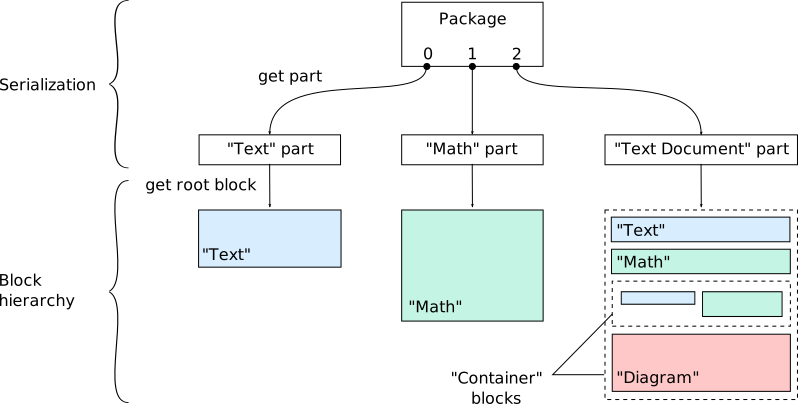
Whendiagram.enable-sub-blocksis set totruein the configuration, "Diagram" blocks contain sub blocks of type "Text", "Node", "Edge" or "Polyedge" describing the content of the diagram.
In iink SDK, a content block is represented by a ContentBlock object that inherits from the ContentSelection object.
- Both content block and selection objects have a bounding box that can be retrieved with the editor
getBoxmethod. The part they belong to is accessible with thegetPartmethod.
Operations common to blocks and selections
Some operations are possible at a finer granularity than the part, with either blocks or selections. The following sections list those main operations:
Retrieving possible actions
For an ease of integration, you can interrogate the editor to get the supported format/type/state related to the actions you intend to apply on the selection/block.
- For instance, to determine whether an export action is possible, you can use the
getSupportedExportMimeTypes(). - When dealing with a lasso selection, the
getAvailableSelectionModes()method lets you retrieve the selection modes of the active selection associated with the editor. You can then choose which selection mode to apply on it with thesetSelectionMode(). This can be useful, for instance, in the case of a lasso selection to choose between a lasso outline, item handles (in case the selection is made of a single item), or resize handles.
Demo example implementation of selection and block context menus.Checking a block hierarchy or a selection validity
Transformation operations
The editor lets you apply geometrical transformations like scaling or translation on selected content. Not all transformations are permitted on any block or selection.
So, you can check whether a transformation is allowed with getTransformStatus() before actually applying it with the transform() method.
Other operations
Block specific operations
Navigating the block hierarchy
Block addition
Placeholder block
A placeholder block is designed to provide integrators with a method to utilize the UI features of the iink SDK inside a "RawContent" part to manage content that is not inherently recognized by iink. It is essentially an image that can be accurately positioned and linked with specific metadata. So, this block is defined by its exact position, image, interactivity options, and custom metadata, allowing you to store relevant information within your document.
You can use the PlaceholderController object associated to the Editor to add and manipulate placeholders within a "Raw Content" part.
The PlaceholderInteractivityOptions object specifies the capabilities for interacting with the placeholder.