Editing
This page introduces the role of the Editor object, the central point to interact with content.
Editor creation and configuration
Creation
An Editor is the main entry point to act on interactive content.
It is responsible for building and updating a content model from users' input events and/or edition commands.
It is instantiated from an Engine:
Editor-level configuration
While iink SDK can be globally configured at engine level, it is possible to override this configuration at editor level. This is particularly useful in form-like use cases, where you need to manipulate fields with different configurations.
For example:
text.configuration.bundle and text.configuration.name behave in a particular way, in that they are only
considered the very first time a given part is set to an editor and cannot be changed afterwards.Setting a part
Guides
Text Document and Text parts have guides set by default. Guides provide useful hints for end users to know where to write and at what size. They also improve the recognition accuracy, provided that handwriting uses them as baselines.
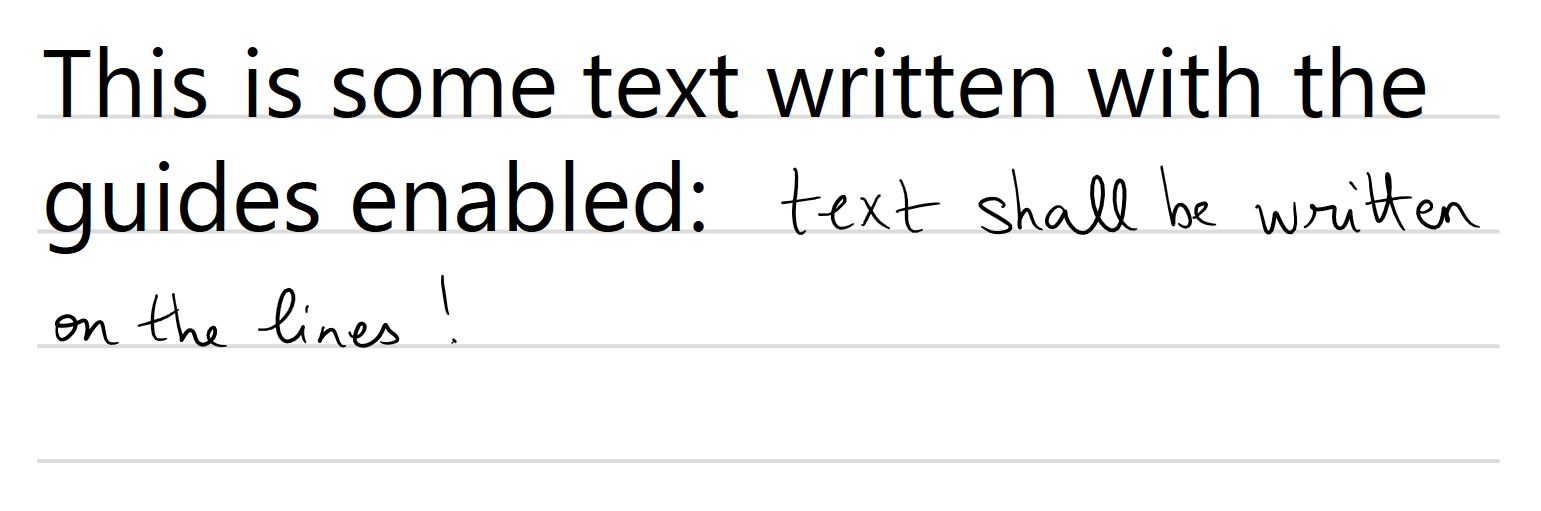
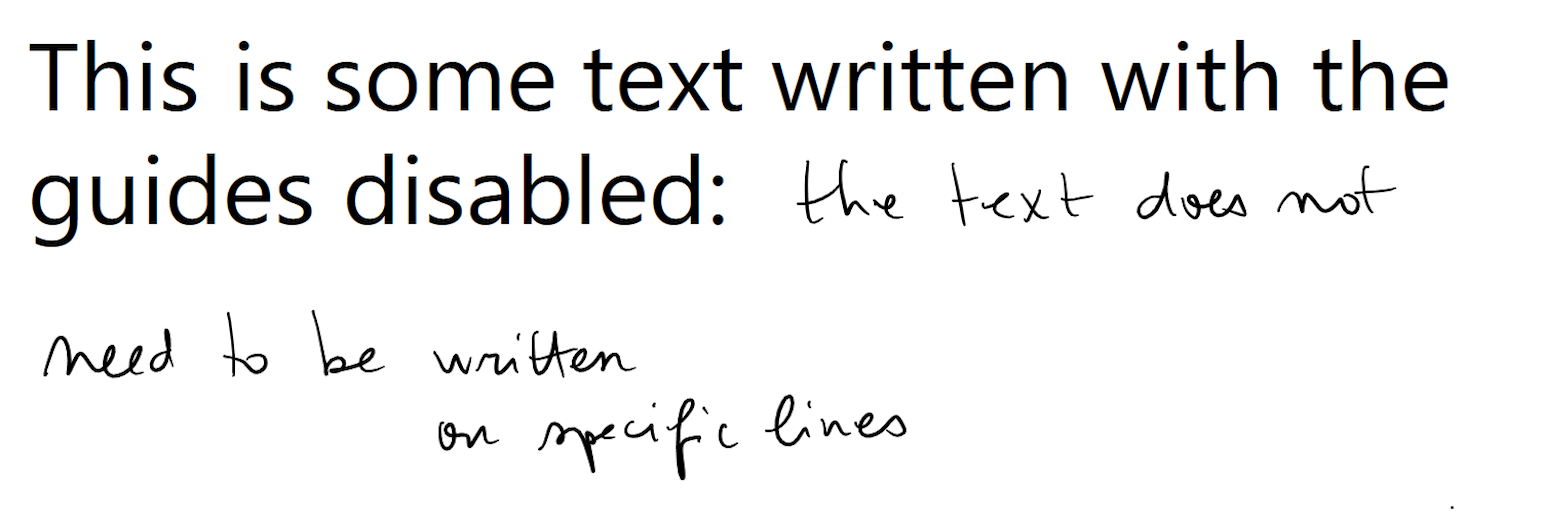
You can enable or disable the guides of a Text part via the text.guides.enable key of the engine or
editor configuration. The vertical spacing between guides can be tuned via the text styling options.
Input capture
You are in charge of capturing the input events. This section gives you some hints on how to transmit the captured inputs to the editor.
Incremental input
MyScript iink SDK typically processes user input in real time. You thus have to tell how pointers are interacting with the capture surface (typically a screen or a graphical tablet).
Each of these methods requires you to provide:
xandy- The coordinates in pixels of the pointer on the surface.t- The timestamp of the pointer eventf- The pressure information associated to the event (normalized between 0 and 1)pointerType- The type of pointer: see thePointerTypepointerId- An identifier for this pointer.
Example:
Remarks:
- The pointer events are analysed and interpreted according to the tool that is currently associated to the pointer type:
when using the
PENtool, iink SDK triggers the recognition, with theSELECTORtool iink SDK determines a selection, etc. - The timestamp is typically the time in ms since Jan 1
st , 1970. You can set it to -1 to let iink SDK generate one for you based on the current time of the system. - By default, iink SDK does not use the pressure information. It is stored in the model and can be retrieved at export or when implementing your own inking. If you don't have or need this information, you can set it to 1.
- If you only have one pointer simultaneously active, you can pass a pointer id of -1.
In the most simple case, you can write something like:
Series of events
In some cases, you may want to send a set of strokes to the engine in a single pass, for instance if you import ink from outside of the iink model that you want to process as a single batch.
Here is an example:
For the particular case of "Text Document" parts, you should:
- Send each batch of pointer events to a dedicated "Text", "Math", "Diagram" or "Drawing" part depending on the type of the content you want to process. Remember to disable the guides on "Text" parts if you cannot ensure that they will match the baselines of the ink words.
- Call
waitForIdle()to ensure that the recognition is complete. - Paste as a block into your "Text Document" part at the appropriate location.
It is possible to configure the maximum number of threads to be used by the engine for text recognition, by setting max-recognition-thread-count configuration value to the number of threads to be used (default is 1).
This tuning might be relevant when processing at one time a large series of events.
Edit and decoration gestures
MyScript iink SDK supports all the standard gestures defined as part of Interactive Ink.
There is nothing particular to do to benefit from gestures when using the PEN tool. The SDK will take care of detecting and applying the effect of the gestures from the provided input
without any plumbing needed.
Decorations can be styled and will be taken into account when generating some of the export formats (ex: text underlining will be
ignored for a simple text export, will turn bold in the case of a docx export and be semantically tagged in a jiix export).
By default, the behaviour associated with the gesture is the same as in previous iink versions. But you can choose the action associated to the gesture to decide what to do with its stroke:
ADD_STROKEto add the gesture stroke as a regular stroke (if relevant) without applying the gesture behavior.APPLY_GESTUREto apply the gesture behavior, as configured in the editor.IGNOREto discard the gesture stroke without applying the gesture behavior.
Other edit operations
The following operations can be directly made on the content of a part via an Editor object:
- Undo/Redo : iink operations handled by the undo/redo stack are operations that modify the model. Such operations include adding stroke, applying gestures, converting the content.
- Clear is applied on the whole "ContentPart".
Most operations, however, are to be done on content blocks.
Recognition feedback
Display recognized text in real time
The UI Reference Implementation comes with a "smart guide" component that lets you provide real-time text recognition feedback to your end users and allows them to select alternative interpretations from the engine.
Refer to the page describing how to work with text recognition candidates for more information.
Improve user experience
- Sometimes, the block extraction or segmentation does not give the expected result, leading to a degraded user experience with some ink recognized as text instead of shape, or shape as drawing, etc.
In order to cope with such a situation, the lasso selector can be used to select some content, and then force
the selected content to be recognized as a specific type and/or grouped with the editor
setSelectionType(). The list of possible types is provided by thegetAvailableSelectionTypes()method. - The
setSelectionType()can also be used to perform math recognition on a selection of strokes of a "Raw Content" part.In this case, make sure to activate the math recognition by adding themathin theraw-content.recognition.typesand deploy the math resources in your application.
Monitoring changes in the model
There are cases where it makes sense to be notified of what occurs in the model. For instance, you may want to update the states of the undo/redo buttons of your interface or only permit an export when there is something to export.
At this stage, you have learnt to write in an application and see actual ink being rendered!