Custom inking
This page explains how to customize iink SDK stroke rendering.
Terminology
In MyScript terminology, "inking" refers to the process of rendering ink strokes. An inking algorithm typically processes the coordinates of the points of a stroke, their associated pressure or timestamp information, as well as stroke styling such as color or width. It consists of two main steps:
- computation of the envelope (i.e. the geometry of the stroke),
- drawing of the stroke itself.
While iink SDK comes with its own built-in inking, the toolkit is flexible enough to let you customize these steps.
Use cases
If you are integrating iink SDK into an application that already implements its own inking capabilities, you may want to make sure that the same rendering algorithm is used for both iink- and application-managed content.
MyScript iink SDK can be tuned to address the following use cases:
- You just want to influence the shape of the strokes to render and let iink SDK draw the strokes by stroking or filling the envelop you define. In this case, all you have to do is to implement and register your own stroker.
- You additionally want to draw the strokes by yourself, for instance if you need to draw textured strokes or if you rely on a rendering technology like OpenGL and want to use particles instead of filling an envelope. In this case, in addition to implement your own stroker (it is required by iink SDK, as explained in the following section), you will need to store information into generated path to be able to use them to render the strokes by yourself.
Requirements from iink SDK
Independently from the amount of customization you intend to apply to stroke rendering, iink SDK needs to know as precisely as possible the envelope of the strokes you intend to draw.
An envelope corresponds to the geometrical shape of the stroke, as shown in the following illustration:

Among other things, knowing the envelops of the strokes lets iink SDK optimize rendering operations (by computing areas to refresh following changes in the model), know which items to render at a given point in time and manage the geometry of selections. A precise envelop definition is key to get good results.
How to use the API
To define your own stroker, you should:
- Define a custom stroker object that adopts the
IINKIStrokerprotocol: itsstrokeandisFillmethods respectively let you return the envelop of a given stroke as anIINKIPathinstance and choose whether iink SDK shall fill or just stroke the resulting path. - Define a custom stroker factory that conforms to the
IINKIStrokerFactoryprotocol: thecreateStrokermethod will let you return an instance of your custom stroker. - Instantiate your custom stroker factory and register it to your
IINKRendererclass with theregisterStrokermethod (you can unregister it later usingunregisterStrokermethod of theIINKRenderer). This method will also let you specify the name of the brush corresponding to your stroker. - Use the brush name you defined to style the ink.
To render the strokes by yourself, you may need to have your own implementation of IINKIPath to store stroke information provided via the stroke method of the IINKIStroker interface.
Data stored within IINKIPath objects will then be available in IINKICanvas drawPath method for you to draw the stroke in a custom way.
IINKIPath protocol is provided for each target platform via the
UI Reference Implementation. You may adapt or subclass it to store the stroke information.Note that depending on whether you close or not your paths and the value you return with isFill, you will define a different envelope. The following figure shows in black the resulting envelope depending on the options and the state of the path in red:
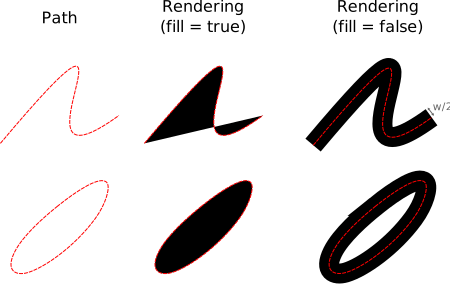
As you can see, if you choose to return false in the isFill property, iink SDK will consider a larger envelope than what is strictly returned by your path,
as it will take into account the pixel width of the stroke (width parameter of the stroke method) to stroke the path.
Code snippets
For the sake of example, this section shows how to implement a very basic inking algorithm based on "line to" instructions. If you are interested to develop your own inking, you will likely implement something both smarter and better looking, but the structure of the code will be similar.
Custom stroker
Let's start by implementing the CustomStroker class:
@implementation CustomStroker

- (BOOL)isFill
{
    return NO;
}

- (void)stroke:(nonnull IINKPoint *)input
        count:(NSInteger)count
        width:(float)width
        pixelSize:(float)pixelSize
        output:(nonnull id<IINKIPath>)output
{
    [output moveTo:CGPointMake(input[0].x, input[0].y)];

    for (int i = 1; i < count; ++i)
        [output lineTo:CGPointMake(input[i].x, input[i].y)];
}

@end
Here, the code uses the fact that a non-filled, non-closed path will be stroked by iink SDK to simplify the code. In most cases, however, you will want to
manage closed paths to create a beautiful shape for the stroke. The InkPoint structure contains all required information about the points of the stroke.
Now, let's implement the custom stroker factory:
@implementation CustomStrokerFactory

- (nonnull id<IINKIStroker>)createStroker
{
    return [CustomStroker alloc];
}

@end
All you have to do now is to instantiate your factory and register it to the renderer with an appropriate brush name:
self.customStrokerFactory = [CustomStrokerFactory alloc];
self.editor.renderer registerStroker:@"LineToBrush"
                        factory:self.customStrokerFactory
                        error:nil];
Finally, you can set the stroker in the theme of the editor:
self.editor.theme = @"stroke { -myscript-pen-brush: LineToBrush; }";
That's it! From now on, iink SDK will rely on your custom stroker to render ink strokes!
Custom drawing of the strokes
First, implement a custom stroker as described above to generate the paths. As explained, iink SDK requires the stroke envelopes for a variety of tasks even if you draw the strokes by yourself.
Next, create your own implementation of IINKIPath
(you can modify or subclass the one provided by MyScript) so that you can use it to store information like point coordinates, pressure, etc. that you will need to render your stroke later. Via its internal cache, iink SDK will preserve this information for you and properly free the memory if the strokes are removed from the model.
Here is a possible implementation, based on the Path class from the UI reference implementation:
@interface Path ()

@end

@implementation CustomPath

- (float)getWidth{
  return self.width;
}

- (void)setWidth:(float)width
{
  _width = width;
}

- (void)setInkPoints:(IINKPoint *)inkPoints
{
  _inkPoints = inkPoints;
}

- (IINKPoint *)getInkPoints
{
  return self.inkPoints;
}

@end
You can now update your custom stroker implementation to store the information into the path:
- (void)stroke:(nonnull IINKPoint *)input
        count:(NSInteger)count
        width:(float)width
        pixelSize:(float)pixelSize
        output:(nonnull id<IINKIPath>)output
{
    CustomPath *customPath = output;
    [customPath setInkPoints:input];
    [customPath setWidth:width];
}
You need to update (or subclass) the provided IINKICanvas implementation to build your custom paths:
- (nonnull id<IINKIPath>)createPath
{
    return [[CustomPath alloc] init];
}
The drawPath method of IINKICanvas will now be called with our paths and you can access your stored values and draw the stroke the way you want:
- (void)drawPath:(id<IINKIPath>)path
{
    Path *aPath = path;
    CustomPath *caPath = (CustomPath*) aPath;
    IINKPoint *inkPoints = caPath.inkPoints;
    float width = caPath.width;

    // Custom drawing
    ...

}
Drawing of textured strokes
If you want to support textured strokes, you can register a custom stroker for each texture you support and store the necessary information for your custom
drawPath implementation to take it into account.