Off-screen usage
This page explains how you can use iink SDK without using iink SDK rendering.
MyScript iink SDK was primarily designed as a graphical-oriented, interactive solution that lets end users easily input and edit their handwriting. With the Editor, interactivity is rendering driven, relying on iink SDK rendering.
Sometimes, however, it makes sense to integrate iink SDK off-screen, without any user interface or with a user interface based on your own rendering, not on iink SDK one.
Non interactive use cases
It may be required to add handwriting recognition capabilities to an existing non-interactive application in batch mode. It might also be useful to process input in incremental mode without displaying the recognition result, for instance to implement an ink search indexing service.
Setup
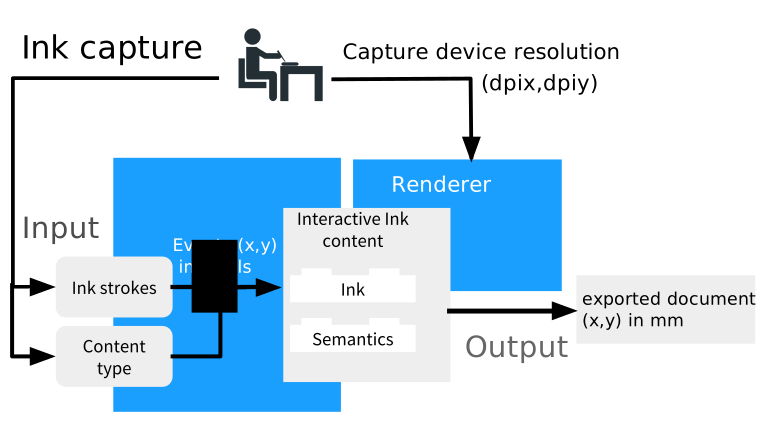
Off-screen setup is very similar to the graphical use case:
- Create and configure an engine.
- Create a renderer from the engine and pass it a null render target.
- Create a package and a content part of the appropriate type to work on.
- Create an editor, set its view size and attach a font metrics provider (for most platforms, you can reuse the one coming with the UI Reference Implementation).
- Attach the part to the editor.
Common pitfalls
- dpi values - Although you do not display the strokes, you need to provide proper dpi values to the renderer. These correspond to the "resolution" of your input surface, be it a digital screen or a sheet of paper. They will provide the recognizer with a sense of "writing scale" and help it favor the right hypotheses.
- Text guides - As explained in the editing part, text guides improve the recognition accuracy, provided that handwriting uses them as baselines. If handwriting does not match the guides, however, the quality of the recognition can be negatively impacted. In most off-screen scenarios, it is thus recommended to turn them off.
- Editor view size - The editor requires you to provide a size before setting the part. This size shall be consistent with your writing surface and the dpi values you provided to the renderer. It will be used by some export options.
- Font metrics provider - Although you may not want to explicitly convert, you need to attach a font metrics provider to the editor before setting the part. This is because font metrics are useful beyond mere display, like for content layout management or some export options.
- Clear the editor between sessions - A common mistake in batch mode is to forget cleaning the part between imports, which causes new ink to be stacked on top of the one from the previous session. In most cases, you thus have to clear the part before processing new input. Creating a new part for each new session and removing the previous one will free the memory from a potentially unwanted undo/redo history.
- Gesture processing - For non-interactive application in batch mode when calling
pointerEvents:count:doProcessGestures:error:on the editor, make sure to set thedoProcessGestureparameter toNO/falseto avoid side-effects and lengthy recognition time. - Export after recognition is complete - Make sure to call
waitForIdleon the editor to wait for the recognition to complete before exporting.
Example
do {
    // Configure the engine to disable guides (recommended)
    try engine?.configuration.set(boolean: false, forKey: "text.guides.enable")

    // Create a renderer with a nil render target
    let renderer = try engine?.createRenderer(dpiX: 50, dpiY: 50, target: nil)

    // Create the editor with a default tool controller
    let editor = engine?.createEditor(renderer: renderer, toolcontroller: nil)

    // The editor requires a font metrics provider and a view size *before* calling setPart:
    let fontMetricsProvider = FontMetricsProvider()
    editor?.set(fontMetricsProvider: fontMetricsProvider)
    editor?.set(viewSize: CGSize(width: 1536,height: 1952))

    // Create a temporary package and part for the editor to work with
    let contentPackage = try engine?.createPackage("text.iink")

    // Create the content part
    let contentPart = try contentPackage?.createPart(with: "Text")

    //set the part to the editor
    editor?.part=contentPart
} catch {
    // Handle error
}
The editor can now be used to process pointer events and export the results.
Offscreen Interactivity use case
Up to iink SDK 2.0, it was necessary to use the iink SDK rendering in order to benefit from iink SDK interactive features. In 2.1, while keeping our classical Editor and its related objects and interfaces, we introduced the Offscreen Interactivity feature based on an OffscreenEditor.
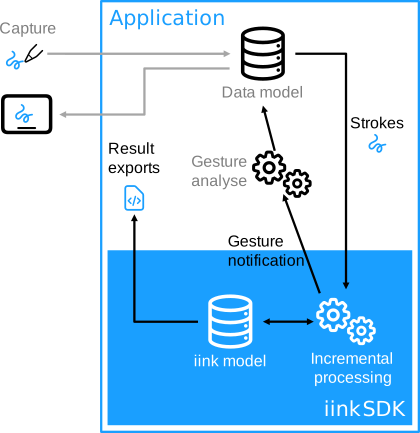
This new feature lets the integrator programmatically drive the content model update by keeping the incremental recognition principle and using gesture notifications. The application can rely on its own rendering to manage the captured strokes and display its model. Recognition results are available on demand with dedicated APIs.
Offscreen Interactivity main objects
For the moment, this feature is only available for “Raw Content” parts. It relies on these new objects and interfaces:
- OffscreenEditor is a service allowing offscreen interactivity. It is the entry point to edit an associated part and receive change notifications.
- ItemIdHelper allows working with item IDs (i.e. strokes). It is associated with an OffscreenEditor.
- IOffscreenEditorListener the listener interface for receiving OffscreenEditor events.
- IOffscreenGestureHandler The listener interface for handling gesture events.
Offscreen Interactivity undo/redo
- HistoryManager gives you access to undo/redo stack manipulation, just like the legacy
Editorand content of changesets. The goal of theHistoryManageris to allow you to use undo/redo to preserve text recognition, rather than redoing strokes, which can change stroke order and recognition output. - To help you synchronize your undo stack with ours, we also give you access to changesets, so you can know what our next undo/redo will do. A changeset contains N ChangesetOperation which each corresponds to an operation (ADD, ERASE or TRANSFORM) on a list of item IDs.
- For performance reasons, a
HistoryManageris associated with anOffscreenEditoron creation, only ifoffscreen-editor.history-manager.enableis set totrue(by default this parameter isfalse). It can then be accessed withOffscreenEditorgetHistoryManager()method.
Offscreen Interactivity API and samples
➤ For more details, refer to the API documentation and/or contact our support team.