MyScript Server Production Installation Documentation
This documentation explains how to install MyScript's servers in a production environment.
Simple schema of the architecture
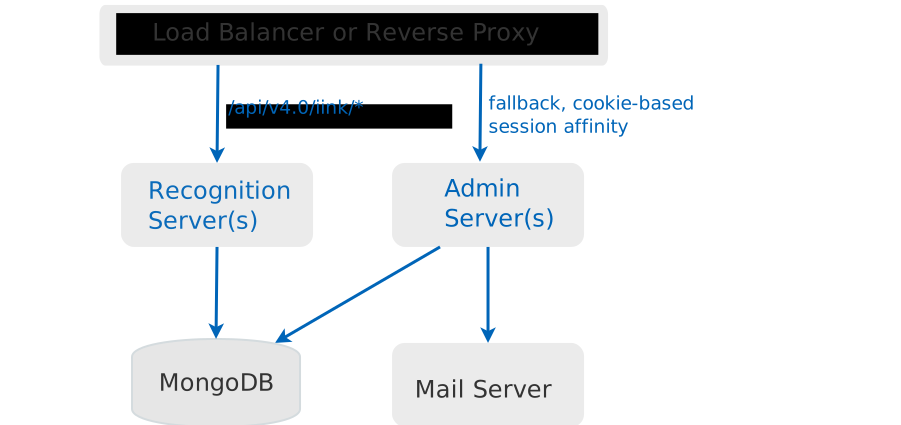
The recognition servers provide the REST and WebSocket endpoints that perform the handwriting recognition. These servers are stateless and can be redounded.
The admin server provides the administration UI and backend for the handwriting recognition ecosystem. It can be redounded with cookie-based session affinity.
host.During the installation procedure you can use the tab keys to navigate through the UI.
Before installation
Before the overall installation you must collect the following information:
- The uri to access the mongodb database. (that includes credential information)
- The information to reach the SMTP server (host and port).
- The e-mail address that will be used to send mails to the users.
- The email and the supervisor that will be created by the installer in the database.
- The user and password of the SMTP server if you plan to choose authenticated connection.
Admin backend
- Go to the
admin-server/deliverydirectory - run the command
sudo dpkg -i myscript-admin-server_<version>_amd64.deb(superuser privilege is required) - Provide the following information that will be asked to you:
- The http port the admin-backend will be listening to
- The mongodb primary uri string
- The mongodb nearest uri string
- The SMTP host URL
- The SMTP port
- The e-mail address that will be used to send mails to the users
- The mail of the supervisor that will be created
- If no account related to the supervisor e-mail you gave existed in the database, a supervisor account will be created using that e-mail. The password of the created account will be
admin. We strongly recommend that you change this password on the first connection to the admin UI.
Recognition backend
- Create a
/var/lib/myscript-iink-server/licenseKeydirectory and copy the license key files to that directory. - Create a
/var/lib/myscript-iink-server/fontsdirectory and copy the content of./fontsto that directory. - Create a
/var/lib/myscript-iink-server/resourcesdirectory and copy the content of./iink-resourcesto that directory. - Go to the
iink-server/deliverydirectory - run the command
sudo dpkg -i myscript-iink-server_<version>_amd64.deb(superuser privilege is required) - Provide the following information that will be asked to you:
- The http port the iink backend will be listening to
- The mongodb primary uri string
- The mongodb nearest uri string
Content of the installation
After the installation has completed, the following changes are made on your server.
Admin backend
/etc/myscript-admin-servercontains the property file of the backend./usr/share/myscript-admin-servercontains the binaries of the backend./etc/default/myscript-admin-servercontains the default values of the java virtual machine of the backend.- A
myscript-admin-serverservice is created. It sends logs to standard output: Usejournalctl -u myscript-admin-serverto access them.
Recognition backend
/etc/myscript-iink-servercontains the property file of the backend./usr/share/myscript-iink-servercontains the binaries of the backend./etc/default/myscript-iink-servercontains the default values of the java virtual machine of the backend.- The owner and group of
/var/lib/myscript-iink-serverare recursively changed tomsws. - A
myscript-iink-serverservice is created. It sends logs to standard output: Usejournalctl -u myscript-iink-serverto access them.
Maintenance of the admin server
Start/stop the server
Start command : systemctl start myscript-admin-server
Stop command : systemctl stop myscript-admin-server
The logs can be accessed with journalctl -u myscript-admin-server
Make the admin service start automatically after system boot : systemctl enable myscript-admin-server
For more information please consult the systemd configuration.
Load Balancing rules
The redirection rules to the admin server are:
- /api/v3.0/admin/
- /api/v4.0/admin/
- /health
A cookie-based session affinity must be set.
A healthcheck can be performed using GET <url of the admin server>/health. the HTTP code of the response should be 200.
Changing parameters
All the parameters you entered during installation can be modified in the /etc/myscript-admin-server/backend.properties file.
You can change parameters of the JVM (such as the Xmx) in the /etc/default/myscript-admin-server file.
Restarting the server(s) is mandatory to take any change into account.
Maintenance of the recognition server
Start/stop the server
Start command : systemctl start myscript-iink-server
Stop command : systemctl stop myscript-iink-server
The logs can be accessed with journalctl -u myscript-iink-server
Make the iink service start automatically after system boot : systemctl enable myscript-iink-server
For more information please consult the systemd configuration.
Fonts
The amount of fonts available with the delivery should meet your needs.
However if you consider adding fonts to the recognition server, please contact us so we can study the case with you.
Adding Resources
In order to deploy new resources sent by Myscript:
. Copy the resource and configuration files in the appropriate directories of /var/lib/myscript-iink-server/resources.
. Restart the iink server(s)
Adding license files
Put the new license file in the /var/lib/myscript-iink-server/licenseKey of the iink server(s).
Load Balancing rules
The redirection rules to the iink server are:
- /api/v4.0/iink/
A healthcheck can be performed using GET <url of the server>/health. the HTTP code of the response should be 200.
The version of the iink server can be obtained using GET <url of the server>/api/v4.0/iink/version.
Changing parameters
All the parameters you entered during installation can be modified in the /etc/myscript-iink-server/backend.properties file.
The recognition servers CPU and memory consumptions widely depend on your traffic model.
For instance, it varies according to the size of requests: whether you send small recognition requests with only a couple of strokes, or a full page of notes at once.
We have set some default values to limit the number of simultaneous REST requests and Web sockets to prevent servers overload.
But according to your use, you might be in a situation where your servers reach those limits while they still have available CPU and RAM.
In such a case, it can be relevant to increase some of the following values in the backend.properties file, according to your traffic:
- The
iink.backend.max-websocketsdefines the maximum number of web sockets that can be opened in parallel by the recognition server. By default its value is 1000. - If you encounter some HTTP 529 error codes to REST requests, while your server still has available RAM and CPU, you might increase :
iink.backend.batch.max-threadswhich is the maximum number of recognition threads (default value = 16)iink.backend.batch.max-queue-sizewhich is the size of the recognitions tasks queue (default value = 50).
- If you are sending REST requests with many strokes for text recognition, it may be relevant to increase the
iink.backend.max-recognition-thread-count, which allows the engine to split the strokes to parallelize the text recognition. By default its value is 1, and we recommend that you do not set it to more than the number of available CPU cores and no more than 4.
You can also change parameters of the JVM (such as the Xmx) in the /etc/default/myscript-iink-server file.
If you need to configure a forward proxy to reach the https://reportswebservices.myscript.com/ URL, you can add these JAVA_OPTS in the /etc/default/myscript-iink-server file:
-Dhttps.proxyHost=<PROXY_HOSTNAME> -Dhttps.proxyPort=<PROXY_PORT> -Dhttps.proxyUser=<LOGIN> -Dhttps.proxyPassword=<PASSWORD>
Restarting the server(s) is mandatory to take any change into account.
MDC (Mapped Diagnostic Context) logging with trace ID
If your recognition server is behind a load balancer or web proxy that sets a request header with a trace ID, the recognition server can reuse this trace ID value to correlate your recognition request with its Java application logs.
For each request, the request-related logs are enriched in the MDC (Mapped Diagnostic Context) with a trace ID field containing a unique identifier.
- If the incoming request contains a trace ID header, the header's value can be used for the MDC log. Otherwise, the recognition server generates a unique identifier.
- The trace ID is also added as a response header.
- You can specify the name of the trace ID header with the configuration parameter
traceId.header.namein the file/etc/myscript-ink-server/backend.propertiesor by using the environment variableTRACEID_HEADER_NAME.
Test your installation
To test you installation you should perform the following steps:
- Log in to the administration UI.
- Click on the Create application button.
- Fill in the name and description field. Click on the Create button.
- Click on the
Openbutton of the application you just created. - Click on the Generate application key button
- Click on the Test button of the application key you just created.
- Choose the version, protocol, recognition and language to test and then click Apply. (If you based your technical architecture on the above diagram, you should not have to change the backend_url field)
- Write something.
Uninstallation
Uninstall the recognition backend
- Make sure that the iink recognition server is stopped.
- Run the command
sudo dpkg --purge myscript-iink-server - Run the command
sudo rm -rf /etc/myscript-iink-server - Run the command
sudo rm -rf /usr/share/myscript-iink-server - Run the command
sudo rm -rf /etc/default/myscript-iink-server - Run the command
sudo rm -rf /var/lib/myscript-iink-server - Run the command
sudo rm -rf /var/.security
Uninstall the admin backend
- Make sure that the admin server is stopped.
- Run the command
sudo dpkg --purge myscript-admin-server - Run the command
sudo rm -rf /etc/myscript-admin-server - Run the command
sudo rm -rf /usr/share/myscript-admin-server - Run the command
sudo rm -rf /etc/default/myscript-admin-server